


 Call Us


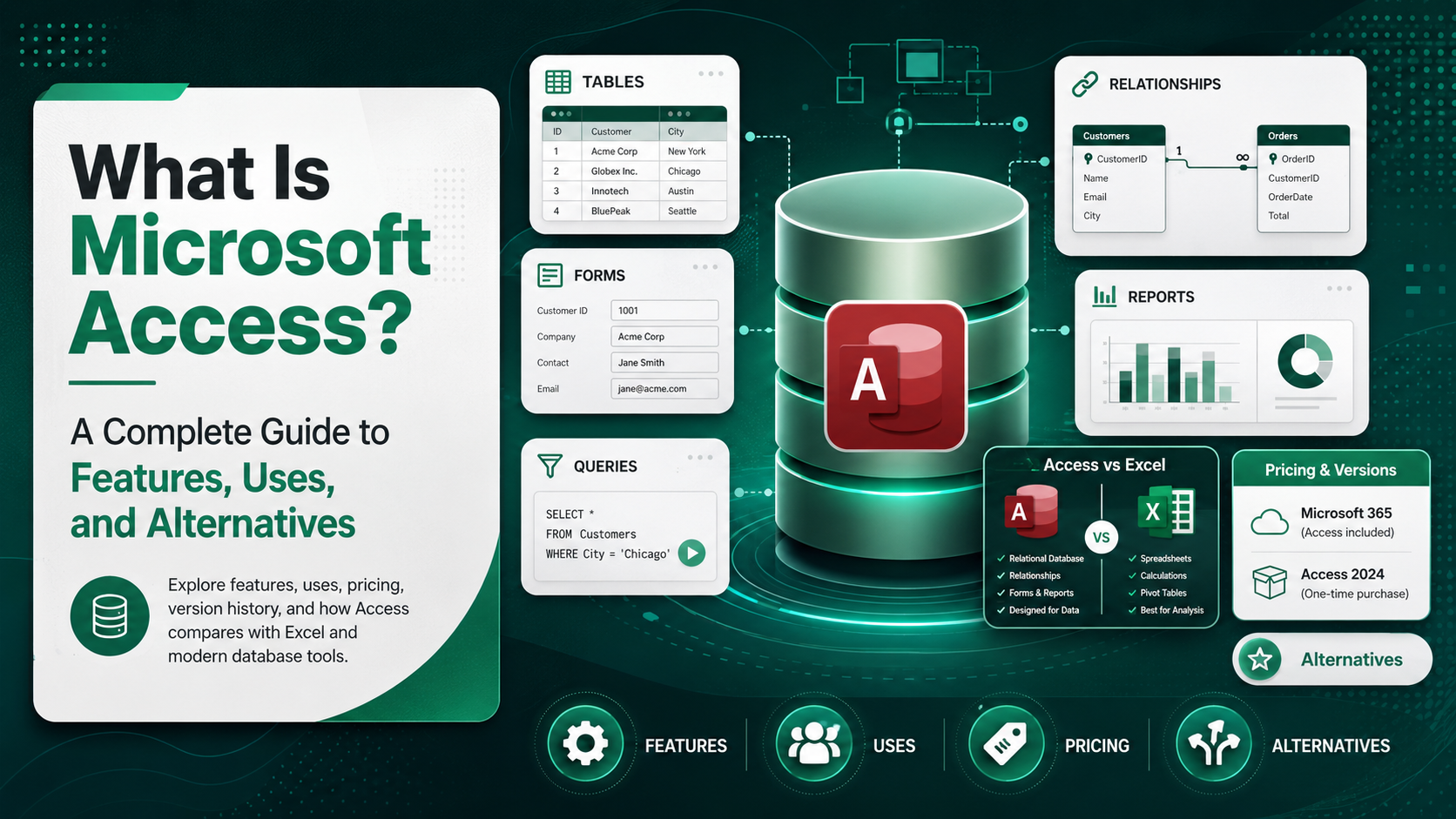
Microsoft Access is a relational database management system (RDBMS) from Microsoft that combines a graphical, form-based interface with the Access Database Engine (formerly the Jet engine) so that individuals and small teams can build database applications without writing complex code. It is part of select Microsoft 365 and Office plans, runs on Windows only, and lets users create tables, queries, forms, reports, and automation (via macros or VBA) to store, search, and present structured data. In 2026, Access remains most useful for small-to-mid-scale departmental databases, internal tools, and rapid prototyping, while larger or web-scale needs are typically handed off to SQL Server, Azure SQL, or Microsoft's low-code Power Platform.
Key Highlights of Microsoft Access
- Microsoft Access was first released in November 1992 and has gone through more than a dozen major versions, with Access 2024 being the current standalone release and Access for Microsoft 365 the continuously updated subscription version.
- An Access database is built from five core objects: tables, queries, forms, reports, and macros/VBA modules, all stored in a single .accdb (or legacy .mdb) file.
- Every Access database file is capped at 2 gigabytes, with a maximum of 32,768 objects and 2,048 simultaneously open tables, according to Microsoft's own specifications page.
- Access can be purchased as a one-time license (listed at 179.99 USD for one PC on the Microsoft Store as of mid-2026) or accessed through qualifying Microsoft 365 Business, Enterprise, and some Personal/Family subscriptions; it is not available for macOS.
- Access is fundamentally different from Excel: Excel is a spreadsheet calculation tool, while Access is a relational database that enforces data types, relationships, and multi-user rules across linked tables.
- Microsoft retired Access-hosted web apps and web databases on SharePoint by April 2018 and now directs cloud and mobile app scenarios toward Power Apps and Microsoft Dataverse, while desktop .accdb databases remain fully supported.
What Is Microsoft Access
Microsoft Access is a desktop relational database management system that Microsoft bundles with certain Microsoft 365 and Office plans. It pairs a visual, drag-and-drop interface with the Access Database Engine, the software layer that actually stores and retrieves data behind the scenes. That combination is what makes Access different from both a plain spreadsheet and an enterprise database server: it gives non-programmers a way to design tables, define relationships between them, build data-entry forms, and generate reports, while still allowing developers to extend the application with Visual Basic for Applications (VBA), SQL queries, and macros.
According to Microsoft's own product page, Access lets users "create your own database apps easily in formats that serve your business best," using either pre-built templates or a blank database, and connect that data to other systems including SQL Server and Microsoft Azure SQL. This dual audience, business users who need a working database fast and developers who need a flexible engine, is the core reason Access has remained in the Microsoft Office lineup for more than three decades even as more specialized tools have emerged around it.
Structurally, Access sits between two categories of software. It is more powerful and more structured than a spreadsheet like Excel because it enforces data types, primary keys, and relationships between tables. At the same time, it is smaller in scale and lower in cost than server-based systems like Microsoft SQL Server, PostgreSQL, or Oracle, which are built to handle enterprise transaction volumes and concurrent users across a network. Access occupies the practical middle ground: a single file, run locally or shared over a network drive, that a small business, department, or individual can use to manage structured records without hiring a database administrator.
History and Version Timeline of Microsoft Access
Microsoft Access has a longer history than many users realize, and understanding its evolution explains why some organizations still run decades-old Access applications today. Based on Microsoft's own release documentation and third-party version-history records, the major milestones are:
- Access 1.0 (November 1992): The original release, sold separately and bundled with Office Professional for Windows, introducing the Jet database engine and the Access Basic macro language.
- Access 1.1 (1993): Improved compatibility and expanded the Access Basic programming environment.
- Access 2.0 (1994): Released alongside Office 4.3 Professional, with performance and usability improvements.
- Access 95 / 7.0 (1995): Rebuilt as a native 32-bit application and bundled with Office 95, aligning Access version numbers with the rest of Office.
- Access 97 (1997): Part of Office 97, widely adopted in businesses and still referenced today because many legacy .mdb databases were built on this version.
- Access 2000, 2002, and 2003: Released with Office 2000 and Office XP, adding database backup and repair tools and tighter integration with other Office applications.
- Access 2007: Introduced the modern ribbon interface and the new .accdb file format, along with new data types such as multi-valued fields and attachments.
- Access 2010: Added Access web databases that could be published to SharePoint, an early attempt at browser-based Access apps.
- Access 2013: Introduced Access web apps with a new architecture that could store data directly in SQL Server, aiming Access at lightweight cloud applications.
- Access 2016: Refined the Linked Table Manager and improved compatibility with newer SharePoint and Office 365 environments.
- Access 2019 and Access 2021: Perpetual-license releases (version 16.x) aligned with the broader Office 2019/2021 product cycles, focused on stability and modest feature updates rather than major redesigns.
- Access 2024 (current standalone release): Part of Office LTSC 2024, this version finally adds ten modern chart types (area, radar, arc, box and whisker, bubble, doughnut, funnel, scatter, waterfall, and word cloud), an updated Monaco-based SQL editor for Microsoft 365 Current Channel users, and expanded Microsoft Teams and mobile integration, per Microsoft's official "What's new in Access 2024" support page.
A significant turning point in this history came in 2017 to 2018, when Microsoft announced it would stop supporting new Access web apps and web databases hosted on SharePoint, shutting the remaining ones down by April 2018. Desktop .accdb databases were not affected by this change, but the retirement signaled Microsoft's shift toward Power Apps and Microsoft Dataverse for browser-based and mobile line-of-business applications, a direction that still shapes Access's role in the Microsoft ecosystem today.
Key Components of a Microsoft Access Database
Every Access database, regardless of version, is built from the same five core object types, all saved inside one .accdb (or legacy .mdb) file:
- Tables: The foundation of any Access database. Tables store raw data in rows and columns, similar to a spreadsheet, but each column (field) has a defined data type such as Short Text, Number, Date/Time, Currency, or Long Text, and tables can be linked to one another through primary and foreign keys.
- Queries: Saved questions you ask of your data, written either through Access's visual Query Design grid or directly in SQL. Queries can filter, sort, join multiple tables, perform calculations, and even update or delete records in bulk (action queries).
- Forms: Custom, user-friendly screens for entering, viewing, and editing data, so that end users never need to touch the raw tables directly. Forms can include buttons, drop-downs, subforms, and validation rules.
- Reports: Formatted, print-ready or exportable summaries of your data, supporting grouping, totals, charts (including the new chart types added in Access 2024), and conditional formatting.
- Macros and VBA Modules: Automation layers. Macros let non-programmers automate repetitive tasks (opening a form, running a query, sending an email) through a simple action-based builder, while VBA modules give developers full programmatic control for more advanced logic.
Because all five object types live in a single file, an Access database is portable: it can be emailed, copied to a shared network folder, or split into a front-end/back-end architecture where the interface (forms, reports, code) is separated from the data tables, a common practice for multi-user Access deployments.
Microsoft Access vs Excel: What Is the Difference
Access and Excel are both part of Microsoft 365, and both can hold structured data, which is why they are frequently confused. In practice they are built for very different jobs.
| Aspect | Microsoft Access | Microsoft Excel |
|---|---|---|
| Core purpose | Relational database management | Spreadsheet calculation and analysis |
| Data structure | Multiple related tables enforcing data types and relationships | Flat grid of cells organized into worksheets |
| Data integrity | Enforces field data types, required fields, and referential integrity between tables | No built-in enforcement; any cell can hold any value unless manually validated |
| Multi-user access | Designed for several people to enter and edit data in the same database concurrently | Co-authoring exists, but simultaneous structured edits by many users are harder to manage safely |
| Querying data | Native SQL-based queries, joins across tables, action queries | Filters, PivotTables, and formulas; no true relational joins |
| Interface for end users | Custom forms and reports built specifically for data entry and presentation | Users typically work directly in the worksheet grid |
| Best for | Structured, growing datasets with relationships (customers, orders, inventory) | Calculations, ad hoc analysis, quick lists, and financial modeling |
A practical rule of thumb: if your data has repeating groups that would force you to duplicate rows in Excel, such as one customer placing many orders, or one employee attending many training sessions, that is usually a sign the data belongs in a relational database like Access rather than a single spreadsheet. Teams that outgrow Excel for exactly this reason often move next into structured data analysis and reporting tools; Simpliaxis's Microsoft Power BI certification training is a common next step for professionals who need to turn Access-style relational data into interactive dashboards.
Microsoft Access vs Other Database Platforms
Access is not the only option for building a database, and knowing where it fits relative to other platforms helps in choosing the right tool for a given project.
- Microsoft Access vs SQL Server / Azure SQL: SQL Server and Azure SQL are enterprise-grade, server-based database engines built to handle large data volumes, high concurrency, and advanced security, whereas Access is a file-based, desktop-oriented engine best suited to smaller datasets and fewer simultaneous users. Microsoft explicitly positions Access as a tool that can connect to and store data in SQL Server or Azure SQL when an application outgrows the local Access engine, making Access a common prototyping or front-end layer for a larger SQL Server back end.
- Microsoft Access vs MySQL/PostgreSQL: These open-source, cross-platform database engines are widely used for web applications and run on Linux, Windows, and macOS, unlike Access, which is Windows-only. They require more setup and SQL knowledge but scale further and are not tied to the Microsoft Office licensing model.
- Microsoft Access vs Airtable/FileMaker: Airtable and FileMaker Pro offer spreadsheet-like, cloud-first database building with cross-platform (including web and mobile) access, appealing to teams that need Access-style structured data without a Windows-only desktop application.
- Microsoft Access vs Power Apps and Dataverse: For browser-based and mobile line-of-business apps, Microsoft now steers customers toward Power Apps built on Microsoft Dataverse rather than Access web apps, which were retired in 2018. Power Apps is the modern, low-code successor for the "cloud app" use cases Access web apps once tried to serve, while desktop Access remains the tool for local, single-file databases.
For teams evaluating whether to stay in Access, move to a full SQL Server back end, or adopt a low-code platform, Simpliaxis's Business Analyst vs Data Analyst comparison is a useful reference for understanding which role typically owns this kind of tooling decision inside an organization.
Real-World Use Cases of Microsoft Access
Access is most commonly found in situations where a full IT-managed database server would be overkill, but a spreadsheet is no longer sufficient. Typical scenarios include:
- Small and medium business record-keeping: Customer contact databases, order tracking, inventory management, and simple CRM-style tools built by a single power user or small team without a dedicated developer.
- Departmental applications inside larger companies: HR teams tracking training records, facilities teams logging maintenance requests, or finance teams managing budget line items, all self-contained within one department rather than requiring an enterprise system.
- Rapid prototyping: Developers and business analysts use Access to quickly mock up a working data model with forms and reports before deciding whether the application justifies a full SQL Server or cloud build.
- Data import and cleanup hub: Because Access can import from and link to Excel files, text/CSV files, SharePoint lists, and ODBC data sources, it is frequently used as an intermediate step to clean, de-duplicate, and structure messy data before loading it into a reporting tool or larger database.
- Educational and personal projects: Access remains a common teaching tool for introducing relational database concepts, normalization, and basic SQL because its visual query builder makes those concepts tangible for beginners.
Professionals who manage this kind of departmental data work, and who want to formalize it into a recognized skill set, often pursue structured training in business analysis; Simpliaxis's Business Analysis training courses cover the requirements-gathering and data-modeling skills that sit directly upstream of building an Access database correctly.
Microsoft Access Specifications and Limits
Because Access is a file-based system rather than a server-based one, it has hard technical ceilings that Microsoft documents on its official Access specifications support page. Knowing these limits up front prevents teams from building an Access application that later needs a disruptive migration.
| Specification | Limit |
|---|---|
| Maximum Access database file size (.accdb or .mdb) | 2 gigabytes, including all objects and minus space needed for system objects |
| Maximum number of objects in a database | 32,768 |
| Maximum number of concurrently open tables (including linked tables) | 2,048 |
| Maximum characters in a Short Text field | 255 characters |
| Maximum characters in a Long Text (Memo) field | 65,535 characters via the user interface, or up to 1 gigabyte when set programmatically |
| Workaround for the 2 GB ceiling | Split data across multiple linked Access database files, each up to 2 GB, or migrate the back end to SQL Server or Azure SQL |
Note that there is no fixed maximum row count for an Access table; instead, the practical row limit is determined by how many bytes each record consumes relative to the 2 GB database file cap. A table of narrow, short records can hold far more rows than a table with many long text or attachment fields before hitting the ceiling.
Microsoft Access Pricing and Licensing in 2026
Microsoft offers Access through two licensing paths, based on Microsoft's own store listing and product documentation:
- One-time purchase: As listed on the Microsoft Store in mid-2026, Access is sold standalone for 179.99 USD as a perpetual license tied to a single PC, currently corresponding to the Access 2024 release. This is a one-time cost with no ongoing subscription, but it does not include future major version upgrades.
- Microsoft 365 subscription: Access is included in select Microsoft 365 Business, Enterprise, and certain Personal/Family plans, where it is continuously updated as "Access for Microsoft 365" rather than tied to a specific numbered version. Subscription plans bundle Access alongside Word, Excel, PowerPoint, and Outlook, and pricing varies by plan tier and region.
Two licensing details are easy to miss and worth confirming before budgeting for an Access deployment: Access is a Windows-only, PC-only application, meaning it is not available for macOS and is excluded from Microsoft 365 for Mac; and Access is not bundled with every Microsoft 365 plan, so organizations should verify their specific plan's inclusions on Microsoft's official plan comparison page rather than assuming it is included by default.
Advantages and Disadvantages of Microsoft Access
Weighing Access honestly against its limitations helps teams decide whether it fits their situation, or whether it is a stepping stone to something else.
| Advantages | Disadvantages |
|---|---|
| Low learning curve for building a working database using visual tools rather than writing SQL server infrastructure from scratch | Windows-only, with no native macOS, Linux, or full mobile app support |
| Included in many existing Microsoft 365 plans, so no extra database software purchase is needed for basic use cases | Hard 2 GB per-file size ceiling, which forces architecture changes as data grows |
| Tight integration with Excel, SharePoint, and Outlook for importing, exporting, and linking data | Not designed for high-concurrency, many-simultaneous-user environments the way SQL Server or cloud databases are |
| Built-in forms and reports mean end users get a real application, not just raw tables | Access web apps and browser-based hosting were discontinued in 2018, pushing cloud/mobile scenarios to Power Apps instead |
| Can act as a front end to enterprise-grade back ends like SQL Server or Azure SQL when a project outgrows the local engine | Poorly structured Access databases (weak keys, no normalization) become fragile and hard to maintain over time, a common complaint in long-running legacy Access apps |
Is Microsoft Access Still Relevant in 2026
Despite periodic predictions of its retirement, Microsoft continues to actively update Access, most recently with the Access 2024 release that added ten new modern chart types and an updated SQL editor, evidence that Microsoft still treats it as a supported, evolving product rather than a legacy holdover. Access's relevance today is best understood as scoped rather than universal: it remains a strong choice for individuals, small businesses, and self-contained departmental tools that need real relational structure without server infrastructure, and it continues to serve as an accessible way to teach database fundamentals like normalization, keys, and SQL.
Where Access has genuinely lost ground is in cloud-native and mobile scenarios. Since Microsoft retired Access web apps and web databases on SharePoint by April 2018, organizations that need browser-based or mobile-first data applications are directed toward Power Apps and Microsoft Dataverse instead. In practice, many organizations now run a hybrid pattern: Access as the local, easy-to-build front end or data-cleanup layer, with SQL Server, Azure SQL, or Dataverse as the back end once an application needs to scale beyond one office or one file.
How to Learn Microsoft Access and Build a Data Career
Microsoft Access is often a professional's first hands-on encounter with relational database concepts, tables, primary and foreign keys, normalization, and SQL queries, before moving on to more advanced tools. Because Access sits at the intersection of everyday business operations and structured data, the most common next steps for someone comfortable with Access are:
- Formalizing business analysis skills: Since Access databases usually start with gathering requirements about what data needs to be tracked and how, structured business analysis training builds the requirements-gathering discipline that produces well-designed databases from the start.
- Moving into business intelligence and dashboards: Once data is reliably structured in Access, the natural next step is visualizing and reporting on it at scale, which is where tools like Power BI take over from Access's native reports.
- Applying AI and automation to existing workflows: Professionals who already manage Access-based processes are increasingly layering generative AI tools on top of their data and reporting workflows to speed up analysis and documentation.
Simpliaxis offers structured, instructor-led paths for each of these directions, including the Microsoft Power BI certification training for turning Access-style relational data into dashboards, the Business Analysis training courses for mastering requirements and data modeling, and the Generative AI for Business Analysts and IT Consultants course for applying AI tools to day-to-day data and analysis work.
Key Takeaways
- Microsoft Access is a Windows-only relational database management system, first released in 1992, that combines a visual interface with a built-in database engine.
- An Access database is made up of tables, queries, forms, reports, and macros/VBA modules, all stored in a single .accdb (or legacy .mdb) file capped at 2 gigabytes.
- Access is fundamentally different from Excel: it enforces data relationships and integrity across linked tables rather than working with a flat spreadsheet grid.
- Access can be licensed as a one-time purchase (179.99 USD for one PC as of mid-2026) or through qualifying Microsoft 365 subscription plans, but it is not available for Mac.
- Access web apps and web databases on SharePoint were retired by April 2018, with Microsoft now steering cloud and mobile scenarios toward Power Apps and Dataverse, while desktop Access remains fully supported and actively updated, most recently in Access 2024.
- Access continues to be most valuable for small businesses, self-contained departmental tools, rapid prototyping, and teaching relational database fundamentals, rather than for large-scale or web-native applications.
Frequently Asked Questions
1. Is Microsoft Access free?
No. Access is not a free-standing free product; it must be purchased either as a one-time license (listed at 179.99 USD for one PC on the Microsoft Store as of mid-2026) or accessed through a qualifying Microsoft 365 subscription plan that includes it.
2. Does Microsoft Access work on a Mac?
No. Access is a Windows-only application and is not included in Microsoft 365 for Mac or available as a native macOS app, per Microsoft's own product documentation.
3. What file format does Microsoft Access use?
Modern Access databases use the .accdb format, introduced with Access 2007. Older databases created in Access 2003 and earlier use the legacy .mdb format, which newer versions of Access can still open.
4. What is the maximum size of an Access database?
An Access database file is capped at 2 gigabytes, including all objects, according to Microsoft's official Access specifications page. Teams that outgrow this limit typically split data across multiple linked files or migrate the back end to SQL Server or Azure SQL.
5. What is the difference between Microsoft Access and Excel?
Excel is spreadsheet software built for calculations and ad hoc analysis on a flat grid of cells, while Access is a relational database that stores data across multiple related tables with enforced data types and referential integrity, and supports true SQL-based queries and multi-user data entry through custom forms.
6. Can Microsoft Access connect to SQL Server?
Yes. Access can link to or store its data in SQL Server or Microsoft Azure SQL, making it possible to use Access as a familiar front end while the actual data lives on a more scalable, enterprise-grade back end.
7. What happened to Access web apps?
Microsoft stopped allowing the creation of new Access web apps and web databases on SharePoint in June 2017 and shut down any remaining ones by April 2018. Desktop Access databases (.accdb files) were unaffected; Microsoft now recommends Power Apps and Microsoft Dataverse for browser-based or mobile data applications.
8. Is Microsoft Access still updated in 2026?
Yes. Access 2024, part of Office LTSC 2024, added ten new modern chart types and an updated SQL editor, and Access for Microsoft 365 continues to receive incremental feature and security updates, according to Microsoft's official "What's new" support documentation.







 Lowest-Price Challenge











 Personalized Path


.webp)


 USA
USA  Canada
  India
India  UK
UK  Australia
  Singapore


